 RefreshWatch
Get a website change alert in Chrome
Waiting for a price drop, a restock or an open appointment? Let Chrome refresh the page for you and get notified when the website changes, without leaving the tab on screen.
How it works
RefreshWatch reloads the tab on a timer you choose. After each reload it waits a moment for the page to settle, reads the part you asked it to watch, and compares it with the previous reload. When it changes, you get a desktop notification and a sound. By default it then stops refreshing, so the page stays as it was when the change happened.
All of this happens in your own browser. That means it works on pages you're signed in to, and the page text never goes to a server.
Choose what counts as a change
The whole page
Good for simple pages, such as a notice board or a status page. Turn on Ignore changing numbers if the page shows a clock, a view count or other numbers that change on every load.
One element
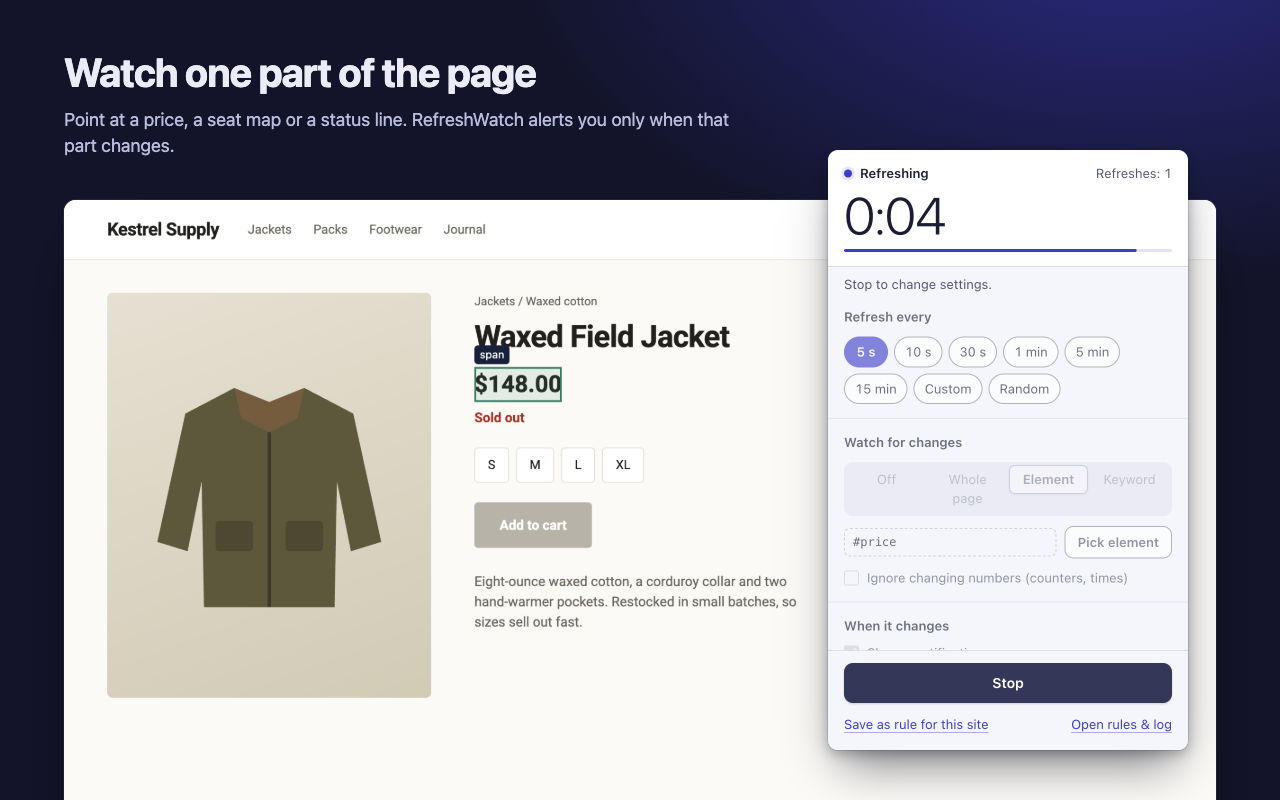
Good for busy pages. Choose Element, click Pick element, and click the part of the page you care about: the price, the “Add to cart” area, the list of open slots. Only that part is compared.
A keyword
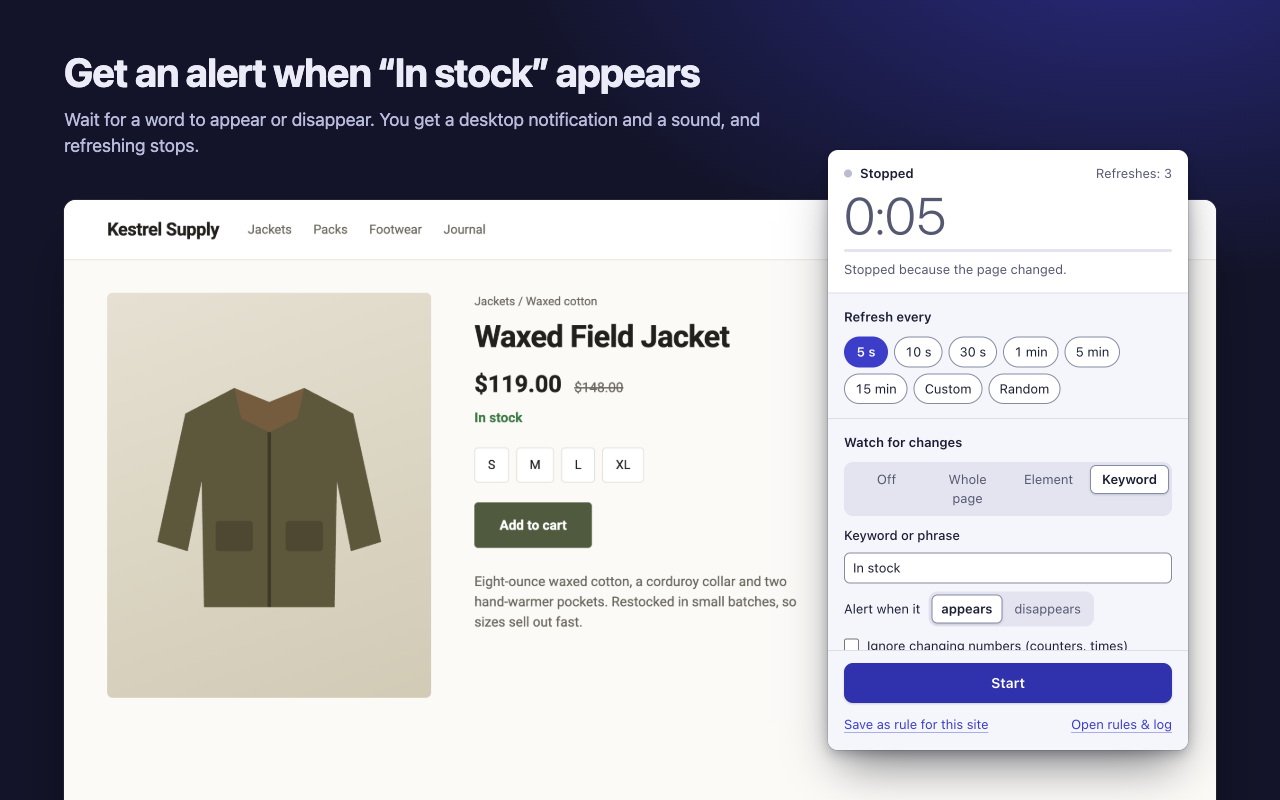
Good when you know the words you're waiting for. Choose Keyword, type a word or phrase, and pick whether to alert when it appears (“In stock”, “Tickets available”) or disappears (“Sold out”, “No appointments available”).
Set up the alert
- Open the page and click the RefreshWatch icon.
- Pick how often to refresh. For most monitoring, 1 to 5 minutes is plenty.
- Under Watch for changes, choose the whole page, an element or a keyword.
- Under When it changes, choose a notification, a sound (five to pick from, with a volume slider), bringing the tab to the front, and whether to stop refreshing.
- Click Start. Chrome asks to let RefreshWatch read that one site; allow it. Nothing else gets access.
Monitor a website for changes every time you open it
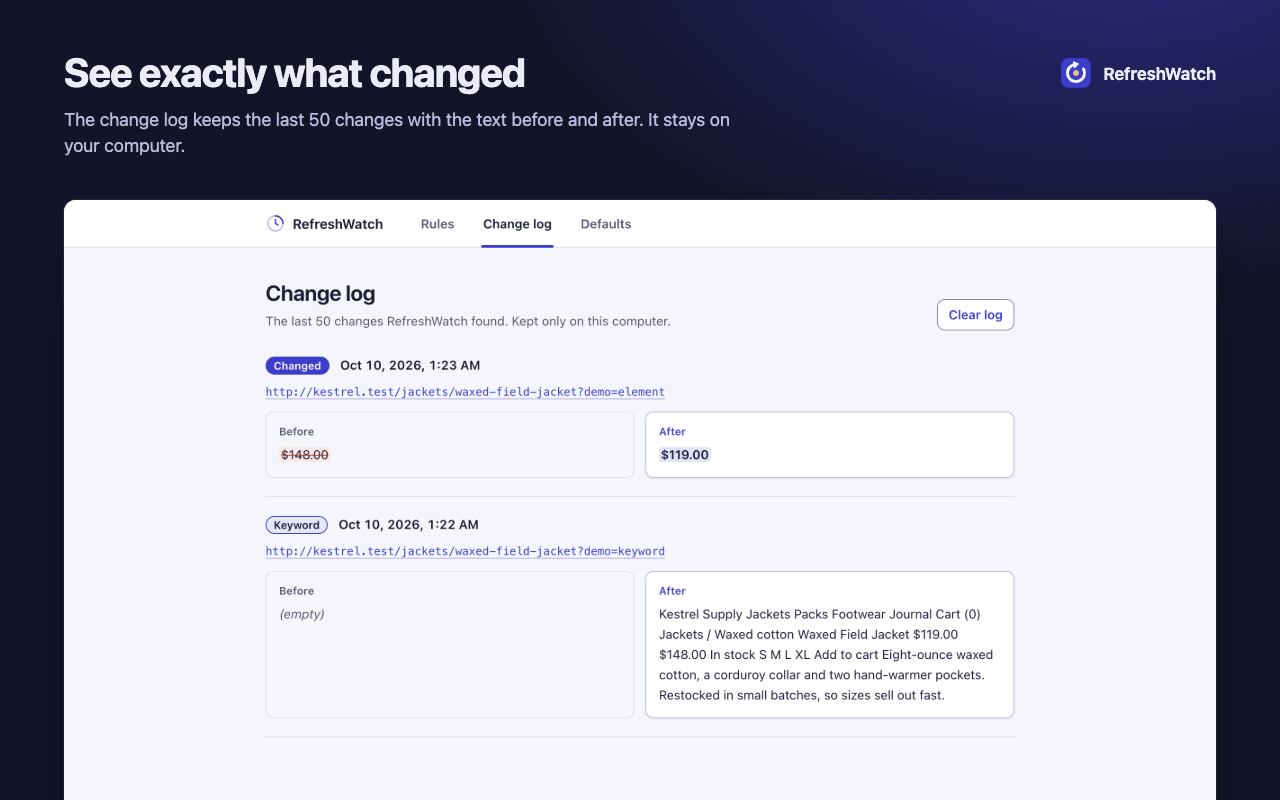
Choose Save as rule for this site and the same watch starts on its own whenever you open a matching page, even after Chrome restarts. The options page lists your rules, lets you turn them off, and keeps a change log of the last 50 changes with the text before and after.
Fewer false alerts
- Watch an element rather than the whole page when the page has ads, recommendations or timestamps.
- Turn on Ignore changing numbers for counters and clocks.
- If a page builds itself slowly, raise Let the page settle for in More options. A picked element that loads late is waited for, up to 10 seconds.
- If a picked element can't be found three refreshes in a row, RefreshWatch tells you once, so a redesigned page doesn't fail silently.
Good to know
RefreshWatch checks pages in open tabs, while Chrome is running. It doesn't check pages in the cloud when your computer is off, and it doesn't send email or text messages.
Chrome doesn't let extensions read chrome:// pages or the Chrome Web Store.
If notifications don't show up, check that your operating system allows notifications from Chrome.